 .
.

If you have a question not covered here, contact us at [email protected] or 800-348-0466.
NEW All of the courses in our catalog now offer closed captioning . If there is a course that does not have closed captioning available, please contact our Customer Service team with the course title at [email protected] and we will get it updated.
NEW We offer two state bundle options. The pre-selected Compliance Bundle and the Build Your Bundle.
Build Your Bundle Once you have purchased your state bundle, follow the steps
Note: Although Build Your Bundle includes access to specialty hours (i.e. Ethics, Diversity & Inclusion, Mental Health/Substance Abuse, etc.) they are not automatically added. If they are needed, customers must be sure to add them, our recommendation is to add the specialty hours first.
Compliance Bundles: If you purchased the Compliance Bundle, which contains pre-selected courses, you will go to your home page and will see the courses listed in your Active Program box. Each course listed will have a “View Program” link which you must click in order to start playing the course. You can also click into Active Programs to see the full list of courses included in your compliance bundle.
CREATING AN ACCOUNT
- How do I create an account?
- Do I have to purchase a program to create an account?
- What is my MCLE Profile?
- Can I add more than one state to my MCLE Profile?
- It says that I have an existing account but I have never been to this site before. Why is that?
- How do I change the email address associated with my CLE Center account?
SYSTEM REQUIREMENTS
- What web browsers are supported?
- What operating systems are supported?
- What connection speed is required to view the program?
- What software is required to view the programs and supplemental materials?
- I am having trouble downloading the required "plug-ins" what should I do?
- What devices can I use to view my courses?
MANAGING YOUR ACCOUNT
- What do I do if I have forgotten my password?
- How do I change my password?
- How do I change my personal information?
- How do I change my billing information?
- Does CLECenter.com store my credit card information?
VIEWING A PROGRAM WITHIN THE CLE CLASSROOM
- How do I begin the program?
- If I am in the middle of a course and need to log off will I lose my progress?
- How do I view course material? Can I print course materials? Do all programs have slides or library documents?
- What is Ask An Expert? How do I use it?
- Why can’t I fast forward or rewind during playback?
- What is a verification code? Where do I find it?
- I purchased a bundle, how do I start viewing my programs?
- How do I access programs I have purchased?
- How do I access programs I have completed?
- When will my course access expire? How long do I have to complete my courses and/or bundles?
- I have purchased the Premium Subscription (Unlimited CLE); however, there are no programs in my account. How do I access the entire library?
- I am having trouble beginning the program when I am at work but it works when I use my home computer? Why?
- I have an unlimited subscription (Premium Subscription or Team Account). How can I find the courses that I just added to my account?
- The media stream is inconsistent, sometimes smooth sometimes choppy. Why might this be happening?
- What is Ask the Expert? Connect to Panelist?
- Does CLECenter.com offer closed captioning for their courses?
- I can hear the speakers but cannot see an image on the screen?
FINANCIAL AID
ORDERING INFORMATION
- What is your refund policy?
- Can I replace any of the programs I have added to my state bundle?
- Will I be receiving a video or audio tape of the CLE program I am purchasing?
- How do I view my receipt for programs I have purchased?
- My courses expired before I could use them, what are my options?
- Is my data secure?
- What is a custom bundle?
- What is a premium subscription?
- What is a State Bundle?
- Promotional Offer Rules:
CERTIFICATE INFORMATION
- How do I obtain credit and access my certificate after completing a course?
- How do I obtain a certificate for multiple states for the same course?
- How do my CLE hours get reported to my state bar?
- How do I print my certificate?
- California Attorneys: How do I report my credits to the State Bar of California?
- What happens if I miss the attendance validation code?
- Does CLE Center need the certificates signed and sent in for my credits to be reported?
CREDIT INFORMATION
- Which states does CLE Center Report Attendance/Credits for?
- Do you report my CLE credits?
- What is the difference between participatory and self-study credit?
- How do I find the MCLE requirements for my state?
CONTACTING LAW.COM CLE CENTER
EGIFT CARD
- Can I use an eGift Card and a promotion code to make a purchase?
- Do the funds on the eGift Cards expire?
- How can I check my eGift Card balance?
- How do I write a personal message when I give or receive an eGift Card?
- What happens when an eGift Card is declined by the recipient?
- Can I use eGift Card(s) to purchase other ALM products?
- Are there any fees for eGift Card purchases?
- Is there a limit to how much money I can add to eGift Cards?
- What is the refund policy for eGift Cards?
- Can the eGfit Card be used if the available balance does not cover total purchase?
- What happens if my eGift Card balance exceeds the value of the CLE Center item I want to purchase?
- May I use my eGift Card to purchase another eGift Card?
- If I have more than one eGift Card in my account can I combine them to make a purchase?
CLE Center Team Account +Law Journal Press Books Subscription
- Can we select which the book is assigned to our attorney?
- The attorney who received the book license left the firm; can we reassign the book access to a different attorney/team member?
- How long will our attorney/team member have access to the book?
- Will we receive a new book annually?
- Will we be charged for the book udpates?
- Can I add more book licenses to our team account?
- Will the team administrator also have access to the book?
- Will our price rate increase with this new feature/offer?
- I have a team account membership — Can I get access to any of the book bundles on CLE Center?
Premium Digital Book Bundles
- What is the Premium Digital Book Bundle?
- What is Law Journal Press?
- What is the difference between Premium Digitial Book Bundle and a State Bundle?
- Do I get to choose the digital book I am given access to?
- How will I access the digital book?
- Is the digital book downloadable?
- Can I purchase more books from Law Journal Press through CLECenter.com?
- I have a team account membership — can I get access to any of the Premium Digital Book Bundles on CLE Center?
How do I create an account?
You can create an account in the following ways:
- Purchase a program
- Click on the create account link from the homepage
top
Do I have to purchase a program to create an account?
No, you can create an account and begin using all the tools that are available to our registered account holders by clicking on the Create Account link on the top navigation bar.
top
What is my MCLE Profile?
Your MCLE Profile helps us determine your CLE Compliance requirements and reporting deadlines. This information is optional, though, in order to earn CLE credit we recommend filling this out before you begin any of the courses.
top
Can I add more than one state to my MCLE Profile?
Yes, when creating your MCLE Profile you may add all of the states you are licensed in. You may also change this information at any time by clicking on Manage Jurisdiction on your home dashboard.
top
It says that I have an existing account but I have never been to this site before. Why is that?
CLE Center Customer Support is available 9 AM - 5 PM EST (6 AM - 2 PM PST) Monday through Friday to help and can be reached via LiveChat, on the phone at (800) 348-0466 or via email at [email protected]. If sending an email, please note that you will receive a response within 24 hours.
top
How do I change the email address associated with my CLE Center account?
Please contact our customer service via LiveChat, on the phone at (800) 348-0466, or email us at [email protected]
top
What web browsers are supported?
CLECenter.com is compatible with all major desktop and mobile browsers including:
Desktop browsers:
- Apple Safari 10.1 or later
- Google Chrome 50.0 or later
- Internet Explorer 11
- Microsoft Edge 15 or later
- Mozilla Firefox 50 or later
Note: HTML5 is not supported by Google Chrome or on Internet Explorer (version 11) on Windows 7
If you are using Mac OS Catalina (10.15) and experience any playback issues on Safari, please try using either Google Chrome or Mozilla Firefox.
Note: Programs will not play on Firefox Browsers running on Windows XP
Mobile browsers:
Apple Safari, Google Chrome, and Mozilla Firefox on mobile devices running on:
- iOS 11.0 or greater
- Android OS 4.3 or greater
top
What operating systems are supported?
CLECenter.com supports PC's that run on Microsoft Windows 7 and greater.
CLECenter.com also support Apple computers running the following Operating Systems:
- Mac OS X 10.6 and greater
- Android OS 4.3 or greater
- iOS Version 11 or greater
top
What connection speed is required to view the program?
To ensure the best viewing experience we recommend to have the following:
- Internet download speed of 10 Mbps or greater
- An up to date version of your web browser
top
What software is required to view the programs and supplemental materials?
Adobe Reader is required to download the course material from the classroom library.
Adobe Reader is free software that lets you view and print Adobe Portable Document Format (PDF) files on a variety of devices and operating systems. Click the image below to download the Adobe Reader.
top
I am having trouble downloading the required "plug-ins" what should I do?
Contact your system administrator or IT department. Some companies limit employee's access to download plug-ins from the Internet.
top
What devices can I use to view my courses?
All courses on CLECenter.com can be viewed on all computers and mobile devices with a live high-speed internet connection.
top
What do I do if I have forgotten my password?
From the CLECenter.com login page, click on Forgot Password. You will have two options for resetting your password.
Option 1: receive a reset email link – enter your email address and click Submit. You will receive an email with the reset link along with instructions.
Option 2: Answer your security questions: Enter your email address, click Submit and you will be asked to answer the two security questions you set up in your account.
Note: Changing your email address will change your username for all Law.com websites that you are subscribed to.
top
How do I change my password?
You can do this easily by moving your cursor over the Dashboard link on the navigation bar and select Change Password from the drop down menu. You can also click on "Welcome [your name]" from the top navigation and click on the Change Password button.
Note: Changing your email address will change your username for all Law.com websites that you are subscribed to.
top
How do I change my personal information?
To change your personal information, after logging in click on Welcome [your name]. You can then change your contact information and will be required to have your security answers set up for the update to be saved.
Note: Changing your email address will change your username for all Law.com websites that you are subscribed to.
top
How do I change my billing information?
You can change your billing information during the checkout process.
top
Does CLECenter.com store my credit card information?
CLE Center does not store credit card information on its servers.
top
How do I begin the program?
From your home Dashboard, click on Active Courses, then click the View Program link at the bottom of the course tile. Once the program is done buffering it will start automatically. If it does not, simply click the play button at the bottom of the media player.
top
If I am in the middle of a course and need to log off will I lose my progress?
No, our courses are on-demand and our system automatically tracks your progress. You can exit the classroom by clicking the Save and Close button. The next time you log back in to your account any courses in progress will appear in the "Ongoing Course" section of your dashboard. Additionally, our system automatically saves your progress, if you simply log out or close your browser during the course you will not lose your progress.
Note: When resuming the course, it will start 30 seconds prior to where you left off.
top
How do I view course material? Can I print course materials? Do all programs have slides or library documents?
To access the course material, when in the classroom, click on the Library tab underneath the media player and click on the Download button. All course material come in either PDF or PowerPoint format which can be saved on your computer or printed.
Note: Not all courses on CLE Center incorporate the slide synchronization technology. Library documents are supplementary materials frequently provided to CLE Center by the panelists in the courses or the content provider. In some instances, we have not received additional materials or permission to reproduce these documents, in which case you will not be able to print the course material.
top
What is Ask An Expert? How do I use it?
Ask An Expert allows you the user to ask a question in relation to course material that will be answered by a panelist or one of our in-house experts. This is not a customer service form. All customer service inquiries should be directed to [email protected] or 800-348-0466.
top
Why can’t I fast forward or rewind during playback?
State Bar rules require that you watch the entire program. To assure this we do not allow fast forwarding or rewinding during your first time participating in a course. Once you complete a course, you will be able to navigate to any point in the program using the rewind and fast-forward features in the media player. You will also be able to navigate by clicking and dragging the slider (red arrow) to the portion of the program you wish to review.
top
What is a verification code? Where do I find it?
Arizona, Delaware, Indiana, Kansas, Louisiana, Nebraska, New Jersey, New York, Ohio, Pennsylvania, South Carolina, Tennessee, and Rhode Island require online CLE providers to embed a verification code in every program. This ensures that you have watched or listened to the program for which you are claiming CLE credit. All programs at Law.com CLE Center for the specific states that have an attendance verification requirement have one or more alphanumeric verification code(s) that will appear for a fixed duration of time during the course of the program.
For programs provided by The Knowledge Group, the codes will be verbally provided by the presenter. You must try typing in the words in either lower case letters or all upper case letters.
The verification code(s) will appear within the media player window. Write down this code, and at the conclusion of the program you will be required to enter the code in order to receive your CLE certificate. This code is case sensitive; therefore if the code appears in capital or lower case, make sure it is entered in capital or lower case.
Please note that the code will appear on the screen in a small, white box, for audio programs in the same manner as for video programs. The program will pause and will only resume when you click on the prompt.
Note: When viewing on a smartphone or tablet in full screen mode when the code appears you must exit full-screen mode to view the code prompt.
top
I purchased a bundle, how do I start viewing my programs?
Build Your Bundle: Once you have purchased your state bundle, follow the steps in the shared document below:
https://drive.google.com/file/d/1f0SD0nPOrJyaOB2lHmNRn_MiLDdmNpS9/view?usp=sharing
Note: Although Build Your Bundle’s include access to specialty hours (i.e. Ethics, Elimination of Bias in the Legal Profession, etc.) they do are automatically added. If they are needed, customers must be sure to add them, our recommendation is to add the specialty hours first.
Compliance Bundles: If you purchased the Compliance Bundle, which contains pre-selected courses, you will go to your home page and will see the courses listed in your Active Program box. Each course listed will have a “View Program” link which you must click in order to start playing the course. You can also click in to Active Programs to see the full list of courses included in your compliance bundle.
top
How do I access programs I have purchased?
After logging in to your account, your home dashboard will provide you with a summary of your account including how many courses and bundles you have. To access your courses simply click on Active Courses; your bundles and courses will be appear in two separate tabs on the side panel.
You can then click on View Program link underneath the title, once the classroom loads if the course has not automatically started, click the play button in the media player.
top
How do I access programs I have completed?
After logging in to your account, your home dashboard will provide you with a summary of your account including how many courses and bundles you have. To access your completed courses, simply click on Completed Courses; all bundles and courses will be appear in separate tabs on the side panel.
You can access and print any certificates earned at any time, even after your subscription expires.
top
When will my course access expire? How long do I have to complete my courses and/or bundles?
You have one year from the date or purchase to complete your courses.
top
I have purchased the Premium Subscription (Unlimited CLE); however, there are no programs in my account. How do I access the entire library?
Although you have unlimited access to our entire course catalog and bundles, you must manually add them to your account.
Friendly reminder: To earn credit for your CLE state(s) you must select your state(s) when browsing our catalog.
top
I am having trouble beginning the program when I am at work but it works when I use my home computer? Why?
This means that there may be a firewall blocking the connection to our streaming server. You can test this by going to our Test your Computer module which will alert you if there is a connection failure.
If that is the case, you can ask your IT department to whitelist the following URL:
https://streams.clecenter.com:8133/
Ports used: 80, 443, 8133
If you have any further questions please contact us at 800-348-0466 or email [email protected].
top
I have an unlimited subscription (Premium Subscription or Team Account). How can I find the courses that I just added to my account?
You would go to Dashboard on the navigation bar and select Active Courses from the dropdown menu.
All courses in the Active Course page is sorted in alphabetical order.
top
The media stream is inconsistent, sometimes smooth sometimes choppy. Why might this be happening?
This may be due to internet speed, please check your internet connection. The recommended internet speed to stream our video content is at least 20 Mbps.
top
What is Ask the Expert? Connect to Panelist?
Ask the Expert and Connect to Panelist allows the viewer to submit questions regarding the course material or subject matter pertaining to the course which will be answered by one of the course panelist or an in-house expert.
This is not a customer service form. To contact CLE Center customer service you can also reach customer service quickly by using the "Send us a Message" panel at the bottom of the classroom page. Additionally, you can reach us via LiveChat, email at [email protected], and by phone at (800) 348-0466.
top
Does CLECenter.com offer closed captioning for their courses?
All of the courses in our catalog offer the option of watching or listening to them with closed captioning. To use this feature simply click on the CC icon on the lower right corner below the media player (see image below).
If there is a course that does not have closed captioning available, please contact our Customer Service team with the course title at [email protected] and we will get it updated.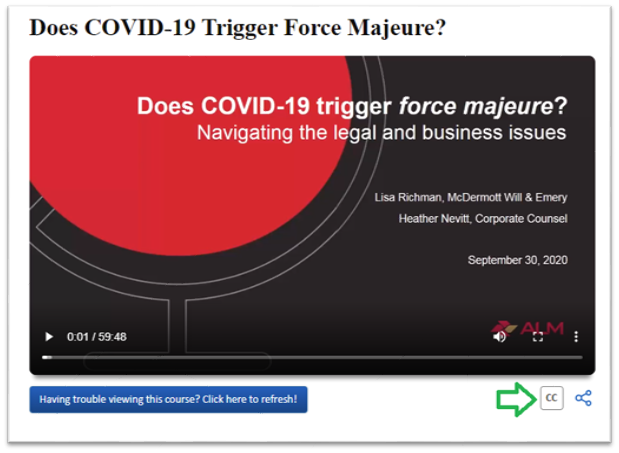
top
I can hear the speakers but cannot see an image on the screen?
Our course catalog includes video and audio only courses. Every course in the catalog or in your My Courses page includes a format icon that indicates the format the course is in. Headphones indicate audio only, a camera icon indicates video.
All attendance validation codes are given visually, not audibly. The validation codes appear in a pop-up prompt in both video and audio courses.
top
Discount for Government Employees
We at CLE Center offer financial aid to government lawyers (includes local, state, and federal), public interest lawyers, and non-profit lawyers. Any prospective participants interested in receiving financial aid must submit a written request using their organization or government email address. Once we verify their agency/organization as being either of the aforementioned bodies we grant the request with a 50% discount code that is valid for use on any program or subscription on our site. Contact a CLE Counselor for the discount code at (800) 348-0466.
top
What is your refund policy?
CLE Center will offer a refund if requested within 30 days of purchase only on unused bundles or programs that have not been viewed in the classroom. Partially used bundles or programs are not eligible for a refund. All refund requests must be submitted in writing within 30 days of purchase for consideration. All returned courses will be charged a 10% cancellation fee of the total product price. After 30 days, your purchase is non-refundable.
CLE Center does not participate in price matching. CLE Center will not honor refunds due to promotional offer pricing differences. Promotions are only valid on new orders of CLECenter.com products.
Expired unused subscriptions will not be renewed one(1) calendar year after the original purchase date.
top
Can I replace any of the programs I have added to my state bundle?
Yes, only if you have not watched it yet. You can remove them from your state bundle from the Active Programs page, click on the Trash Can icon which will be to the far right of each program, you will receive a prompt asking if you are sure, just click OK and the course will be removed and the credit(s) used for that program restored to your overall available credits.
top
Will I be receiving a video or audio tape of the CLE program I am purchasing?
No, these programs are viewed entirely online at any computer with Internet access, 24 hours a day, 7 days a week.
top
How do I view my receipt for programs I have purchased?
You can view your receipt for any program you have purchased by selecting the View Receipt link within your Active or Completed Programs list in My Account.
top
My courses expired before I could use them, what are my options?
Access to CLE Center courses are only valid from one (1) calendar year from the date of purchase. We do offer an extension option, given that your purchase meets the criteria. Expired Program Extension Rules and Fees:
- $65 one-time extension fee. This grants customers access to their bundle/program for an additional 30 Days and only includes access programs that are still accredited for your MCLE state.
- Extensions are not available for the Premium Subscription.
- If courses are expired for your MCLE state, replacement courses will be chosen by CLE Center staff and will only be swapped for the exact amount of credits as the expired course.
- Extensions are only available on Bundles (Compliance and Build Your Bundle) or Individual Course purchases.
- Extensions must be requested within 30 days of the program or bundle expiration date.
- Any requests for extensions beyond 30 days will not be honored.
- One extension per person per year.
- Extensions are not applicable for Team Account customers.
- These rules and fees are subject to change at any time without notice.
top
Is my data secure?
CLE Center uses industry-standard SSL (Secure Socket Layer) encryption to protect the confidentiality of your personal and credit card information. Our privacy policy ensures that your information is secure and private.
top
What is a custom bundle?
A custom bundle is a cost-effective way for you to create your own set of CLE programs less expensively than purchasing each program individually. Custom bundles range in price from $25 to $45 per credit, depending on the number of credits.
top
What is a premium subscription?
A premium subscription gives you unlimited access to all courses in the CLE Center library. The subscription expires one year from the date of purchase, no extensions will be given on this subscription.
top
What is a State Bundle?
A State Bundle allows you to complete all of your required MCLE credit hours in one package. This bundle is selected to satisfy the CLE requirements of your state. You have one full year from the date of purchase to complete all programs in your bundle. Once the programs expire the following rules will apply to all bundled content:
- $65 one-time extension fee. This grants you access to your programs for an additional 30 days and only includes access programs that are still accredited for your MCLE state.
- If courses are expired for your MCLE state, there will be a $10 PER COURSE replacement fee, in addition to the $65 extension fee.
- Replacement courses will be chosen by CLE Center staff and will only be swapped for the exact amount of credits as the expired course.
- Extensions are only available on Bundles or Individual Course purchases.
- Extensions are not available for the Premium Subscription.
- Extensions must be requested within 30 Days of the program or bundle expiration date.
- Any requests for extensions beyond 30 Days will not be honored.
- One extension per person per year.
- Extensions are not applicable for block account customers.
- These rules and fees are subject to change at any time without notice.
top
Promotional Offer Rules:
- Promotional offers end on the expiration date and time stated in the promotion and will not be extended after that date. If there is no date stated in a promotion, then the promotional offer will expire exactly one week after the date that it was originally sent.
- Once a promotional offer is accepted with a purchase, it cannot be exchanged for another promotional offer at any time.
- There is a limit of one promotion per order.
- These rules are subject to change at any time without prior notice.
top
How do I obtain credit and access my certificate after completing a course?
Once you have completed the entire program, a View Certificate link will appear above the overall progress meter and within the main body of the classroom. Click on the link and your certificate will be generated. You may additionally view your certificate once it has been generated in your Completed Courses.
Attendance validation code(s) are required by the following states to receive CLE credit: Arizona, Delaware, Louisiana, Indiana, Kansas, Nebraska, New Jersey, New York, Ohio, Pennsylvania, South Carolina, and Tennessee.
The case-sensitive validation codes will appear during the course in a separate pop-up/prompt. Viewers should write down/copy the codes that they see pop-up.
Note: We cannot report your credits if the validation codes are not entered.
top
How do I obtain a certificate for multiple states for the same course?
If you are an attorney licensed in multiple states requiring CLE credit you may earn credits provided that the course is approved in those respective states.
You must first add those states you are licenses in to your MCLE Profile. Upon completing your course, you will find multiple certificate links for the states that are in your profile given the course is approved in those states.
For those states that require validation codes (see list below) you must enter the codes to access the certificates. Once accessed the certificates are available for viewing at any time even after your subscription is expired.
States requiring attendance validation: Arizona, Delaware, Indiana, Kansas, Louisiana, Nebraska, New Jersey, New York, Ohio, Pennsylvania, South Carolina, and Tennessee.
top
How do my CLE hours get reported to my state bar?
Procedures for reporting CLE attendance vary by state. CLECenter will report credits to the state bar that have a mandatory reporting requirement for accredited providers. Each individual state on our website provides information on reporting. CLECenter submits credits after completion of the courses.
Here are the states that CLECeter.com reports for:
Alabama, Delaware, Georgia, Illinois, Indiana, Kansas, Louisiana, Nebraska, New Mexico, North Carolina, Ohio, Oklahoma, Pennsylvania, South Carolina, Tennessee, Texas and Utah. Most state are reported on a weekly basis while Illinois is done monthly. Attorneys in all other states are required to self-report using the certificate that is generated after the completion of the program.
top
How do I print my certificate?
To print your certificate, select the Print icon in the upper left hand corner of your certificate.
top
California Attorneys: How do I report my credits to the State Bar of California?
California attorneys are to submit a statement of Compliance through their "My State Bar Profile" account on the CA State Bar website - you can find a guide provided by the State Bar here.
top
What happens if I miss the attendance validation code?
The attendance validation code appear in a visual pop-up in both video and audio courses. The course will top and the prompt will appear on the screen, the course will not resume until you click on the prompt.
If you are sure that no validation code(s) appeared during the course, please contact Customer Support team by phone (800) 348-0466 or via email at [email protected]. We will look into the matter and provide you with the best resolution.
To see a sample of the validation code prompt click here.
top
Does CLE Center need the certificates signed and sent in for my credits to be reported?
No, we do not need your certificates signed or sent to us for your credits to be reported. If you require CLE credit for a state that requires attendance validation codes you simply enter the codes upon completion (see list of states below).
CLE Center Reports attendance to the following states: Alabama, Delaware, Georgia, Illinois, Indiana, Kansas, Louisiana, Nebraska, New Mexico, North Carolina, Ohio, Oklahoma, Oregon, Pennsylvania, South Carolina, Tennessee, Texas, Utah and West Virginia
CLE States that require attendance validation: Arizona, Delaware, Indiana, Kansas, Louisiana, Nebraska, New Jersey, New York, Ohio, Pennsylvania, South Carolina, and Tennessee.
top
Which states does CLE Center Report Attendance/Credits for?
CLE Center submits weekly attendance reports to the following states:
Alabama, California, Delaware, Georgia, Illinois, Indiana, Kansas, Louisiana, North Carolina, Nebraska, New Mexico, Nevada, Ohio, Oklahoma, Oregon, Pennsylvania, South Carolina, Tennessee, Texas*, Utah and West Virginia.
If there are any questions about your credits please feel free to contact us at [email protected].
*Texas allows attorneys to self-reports their attendance.
top
Do you report my CLE credits?
We report attendance for the following states: AL, DE, GA, IN, KS, LA, NC, NE, OH, OK, PA, RI, SC, TN, TX, UT, WV.
The Texas Bar also offers attorneys the ability to self-report their credits.
top
What is the difference between participatory and self-study credit?
In general, participatory credit may be earned through a program that logs user attendance. A program that is unable to verify user attendance may only offer self-study credit.
Attorneys are only allowed to take a certain amount of self-study credits to meet their MCLE compliance. For your convenience, CLE Center programs that offer only self-study credit will be labeled as self-study.
Participatory and self-study credit rules vary among states so please check with your state bar for more details.
top
How do I find the MCLE requirements for my state?
Requirements and their reporting periods vary by state and can change regularly. Your state CLE board is the official keeper of this information. CLE Center does provide state-by-state information which you can access by selecting your state from the State Bundles menu on the title bar.
top
How do I contact CLE Center for additional information?
If you have a question not covered here, you can contact our Customer Support Monday through Friday, 9 AM - 5 PM EST (6 AM - 2 PM PST) through:
-
LiveChat
-
Email at [email protected]
-
Toll-free at (800) 348-0466
For more detailed contact information please view our contact page.
CLE Center
150 E 42nd Street, Mezzanine
New York, NY 10017
top
Can I use an eGift Card and a promotion code to make a purchase?
No, eGift Cards cannot be combined with promotional codes.
top
Do the funds on the eGift Cards expire?
Yes. The funds expire one year from the date of purchase.
top
How can I check my eGift Card balance?
Once you log into your account at https://www.law.com/clecenter, you will see your available balance. Clicking on Manage eGift Card button will allow you to review all transactions related to the eGift Card(s).
top
How do I write a personal message when I give or receive an eGift Card?
For senders: You will have an option to add a personal message when entering the amount of the eGift Card before proceeding to the check-out page.
For recipients: You will have the option to send a personal message whether you are accepting or declining the eGift Card.
top
What happens when an eGift Card is declined by the recipient?
The sender will receive a notification via e-mail, along with a personal message if the recipient decides to include one, and the sender will have the option to reassign the eGift Card to someone else.
top
Can I use eGift Card(s) to purchase other ALM products?
eGift Cards can only be used to purchase CLE Center products
top
Are there any fees for eGift Card purchases?
No there are no additional fees.
top
Is there a limit to how much money I can add to eGift Cards?
You may add a minimum of $50 to eGift Cards. There is no maximum to the amount you may add to eGift Cards.
top
What is the refund policy for eGift Cards?
There are no refunds on eGift Cards.
top
Can the eGfit Card be used if the available balance does not cover total purchase?
Yes, you can pay the difference of the purchase via credit card.
top
What happens if my eGift Card balance exceeds the value of the CLE Center item I want to purchase?
The remaining balance will remain on the eGift Card and available to use for future purchases within the expiration period.
top
May I use my eGift Card to purchase another eGift Card?
No. Since a portion of the revenue goes to charity we do not allow customers to use a gift card to purchase additional eGift Cards.
top
If I have more than one eGift Card in my account can I combine them to make a purchase?
No. You may only use one eGift Card or promotion code per order.
top
Can we select which the book is assigned to our attorney?
As part of the complimentary offer, the titles are preselected by CLE Center management.
top
The attorney who received the book license left the firm; can we reassign the book access to a different attorney/team member?
No, book licenses are non-transferable during the current subscription. However, they can be reassigned at the time of your Team Account renewal.
top
How long will our attorney/team member have access to the book?
The book licenses will be available for the life of the CLE Team Subscription.
top
Will we receive a new book annually?
At this time no new books will be assigned. However, there will be up to 2 updates, per year to the book assigned to the license holder.
top
Will we be charged for the book udpates?
No, there is no charge for the book updates.
top
Can I add more book licenses to our team account?
Additional book licenses must be purchased through our Law Journal Press sales team. Please contact [email protected] for more information.
top
Will the team administrator also have access to the book?
Book licenses can only be assigned to Team Account license holders. If the team admin has a site license, they will be eligible for the book license.
top
Will our price rate increase with this new feature/offer?
No, you will keep the same price rate. New accounts will be priced at the current market rate while our legacy accounts will keep their discounted price point.
top
I have a team account membership — Can I get access to any of the book bundles on CLE Center?
No, team account members have unlimited access to CLE Center. The complimentary book access is assigned and cannot be changed.
Additional books licenses would require an upgrade. For more information please contact [email protected] -
top
What is the Premium Digital Book Bundle?
CLE Center has partnered with our sister company, Law Journal Press (LJP), to offer an exclusive bundle package that includes our Premium Subscription, which offers unlimited access to our CLE courses, and online digital access to one of LJP's best-selling digital titles specific to your state*.
This bundle is currently being offered for Pennsylvania, New Jersey, and Texas only.
top
What is Law Journal Press?
Law Journal Press (LJP) offers titles in over 30 practice areas and 9 specific regions, written by authors who are among the nation's most highly regarded members of the profession.
top
What is the difference between Premium Digitial Book Bundle and a State Bundle?
State Bundles are bundled courses aimed at satisfying the designated states CLE requirement. The Premium Digital Book Bundle is a special subscription package which bundles our unlimited Premium Subscription along with a selected online/digital book from the Law Journal Press catalog. We currently offer the book subscription for New Jersey, Pennsylvania and Texas only.
top
Do I get to choose the digital book I am given access to?
No, the digital book included in the bundle was selected to offer all attorneys from multiple practice areas a broad range of information that will be resourceful to them.
top
How will I access the digital book?
There are three ways to access the digital book. You can access the book from CLE Center: 1) By clicking on the LJP Online Bookshelf tile on your Dashboard panel 2) Go to Active Courses and click on Premium Digital Book Subscription tab on the left panel then click on the book title that appears or 3) you can visit Law Journal Press and use your CLE Center credentials to login.
top
Is the digital book downloadable?
Yes, to keep a copy of the eBook we recommend you download it to your system. If you have questions about Law Journal Press online book reader and digital book access visit their FAQ page.
top
Can I purchase more books from Law Journal Press through CLECenter.com?
No, any additional book orders must be purchased through the Law Journal Press sales team. You can contact the LJP sales team via email at [email protected] or toll-free (877) 807-8076 for more information.
top
I have a team account membership — can I get access to any of the Premium Digital Book Bundles on CLE Center?
No, team account members have unlimited access to CLE Center. The complimentary book access is assigned and cannot be changed. Additional books licenses would require an upgrade.
For more information on upgrading your LJP account please contact LJP Sales at (877) 807-8076 or via email at [email protected].
top